We use SchoolCloud Interviews, an online booking system for scheduling interviews. The Student Progress Interviews have been set up so you will see your child/children’s teachers and should simply select those you wish to see at the available times.
Detailed instructions are below on how to access the system.
Please contact the college on (02) 6057 9000 if have any problems making a booking.
Step 1: Login
Browse to https://wodongamiddleyearscollegeau.schoolcloud.co.uk
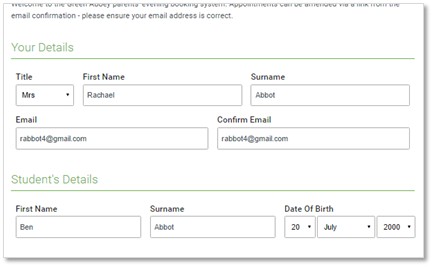
Fill out the details on the page then click the Log In button.
NOTE: Student details section needs to match the student enrolled Preferred First Name and Surname exactly.
Select the current interview Cycle.
Step 2: Select in-person or video
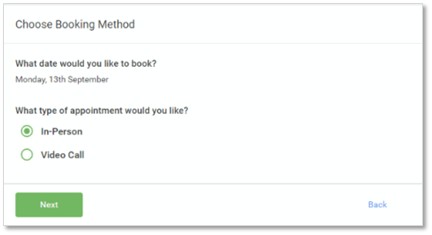
Video Call – On the night you will log back into this portal and connect with your teachers via the video interface
In-Person – All interviews will be attended at the school
Step 3: Select Booking Mode
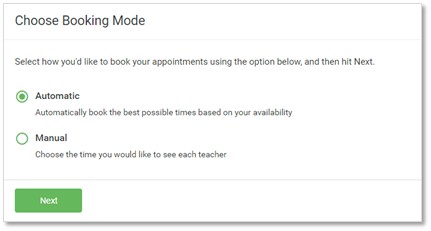
Manual = You pick the times to book with each teacher.
Automatic = The system will suggest the shortest possible appointment schedule based on the times you’re available to attend
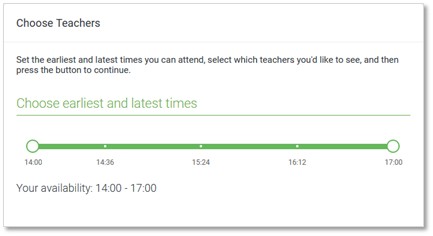
Step 4: Select Availability
Drag the sliders at the top of the screen to indicate the earliest and latest you can attend.
Step 5: Choose Teachers
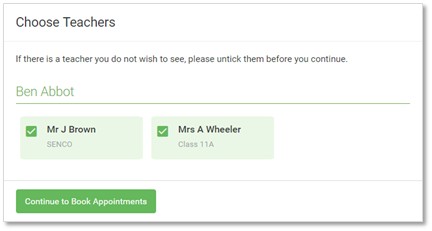
Select the teachers you’d like to book appointments with. A green tick indicates they’re selected. To de-select, click on their name.
Step 6: Book Appointments (Automatic)
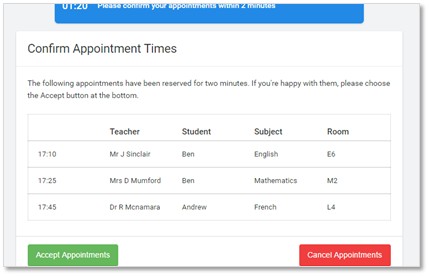
If it wasn’t possible to book every selected teacher during the times you are able to attend, you can either adjust the teachers you wish to meet with and try again, or switch to manual booking mode.
If you chose the automatic booking mode, you’ll see provisional appointments which are held for 2 minutes. To keep them, choose Accept at the bottom left.
Step 7: Book Appointments
Once you’re finished booking all appointments, at the top of the page in the alert box, press click here to finish the booking process.
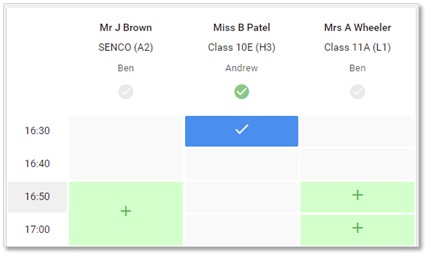
Click any of the green cells to make an appointment. Blue cells signify where you already have an appointment. Grey cells are unavailable.
To change an appointment, delete the original by hovering over the blue box and clicking Delete. Then choose an alternate time.
Step 8: Finished
To change your appointments, click on Amend Bookings.
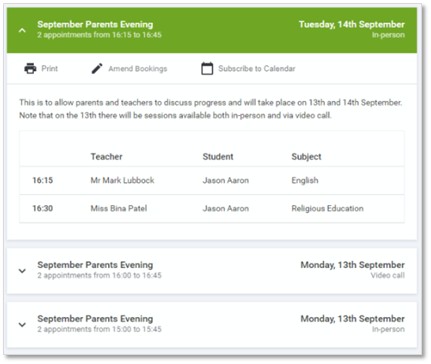
All your bookings now appear on the My Bookings page. An email confirmation has been sent and you can also print appointments by pressing Print. Click Subscribe to Calendar to add these and any future bookings to your calendar.